
Settings
Learn how to configure and customize your server settings
The Settings page allows you to customize your server's configuration, adjust variables, and modify server details to suit your needs. It is split into two cards: Application and Server.
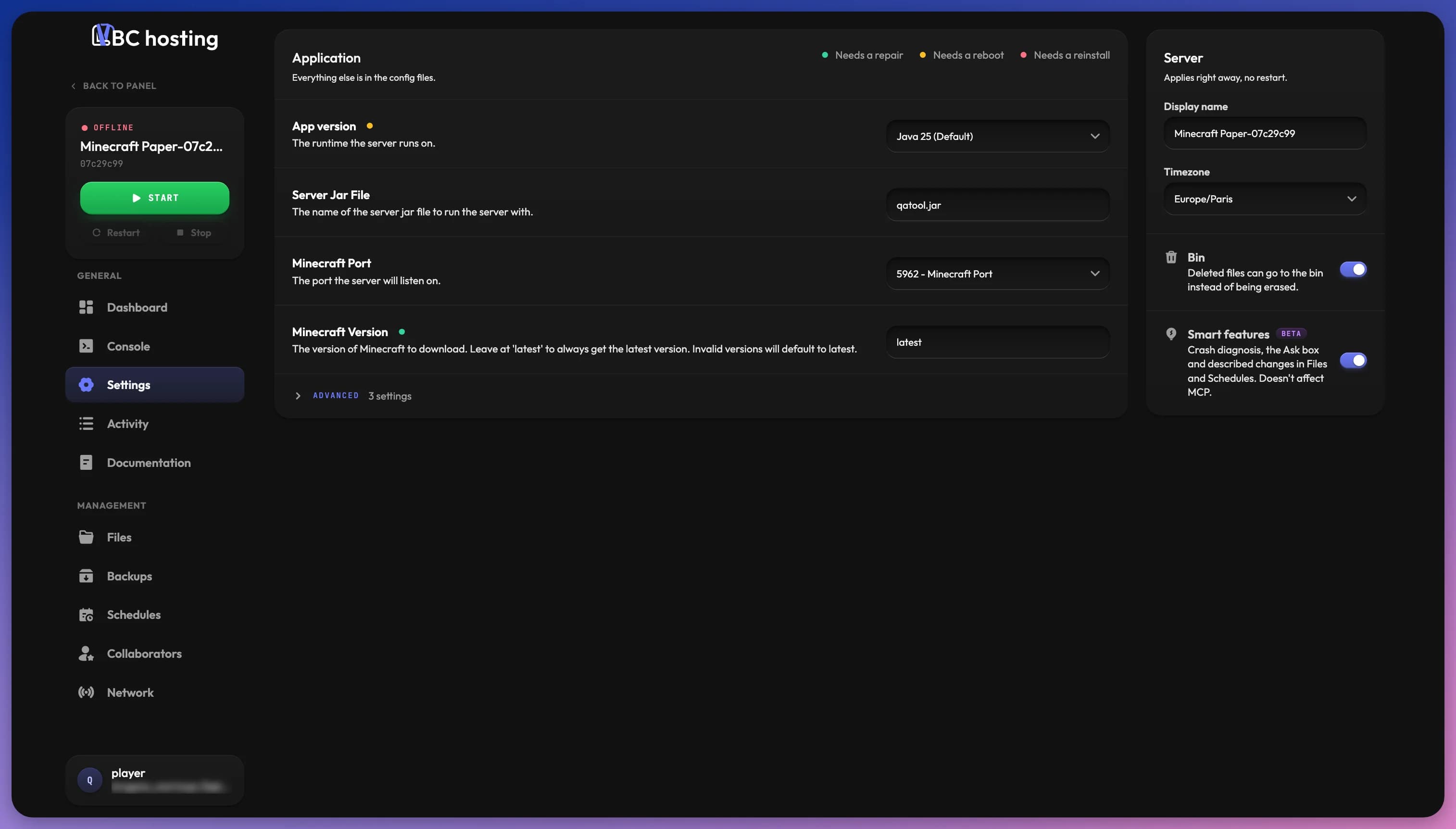
Application
The Application card holds your server's startup variables. They allow you to customize various aspects of your server's behavior without having to edit configuration files directly. Everything else is in the config files.
The variables displayed depend heavily on the selected application or game. Common variables might include:
- The app version (the runtime the server runs on)
- World generation settings
- Performance configurations
- Game mode options
- Connection settings
Variables meant for experienced users are grouped in the collapsed Advanced section at the bottom of the card. Some variables are marked Read only and can't be changed.
For some applications, you can access detailed explanations of specific variables by using the "Documentation" button in your panel sidebar. See our Introduction Guide for more information about this feature.
Variable Tags
A colored dot next to a variable tells you what it takes for a change to apply. The legend is at the top of the card:
- Needs a repair: Run Update & repair (or a reinstall) from the dashboard for the change to take effect
- Needs a reboot: Restart the server for the change to take effect
- Needs a reinstall: Reinstall the application for the change to take effect
Server
The Server card holds settings that apply right away, with no restart:
- Display name: The name of your server shown in the panel.
- Timezone: The timezone for your server and schedules. This affects when scheduled actions run and how times are displayed in logs. Choose the timezone that matches your location or your target audience.
Application Options
Below the server settings, options change how features work for this server. Each option is saved as soon as you change it.
Bin
When Bin is on, deleted files can go to the bin instead of being erased, so you can still get them back. See File Management for how to use it.
Smart Features
Smart features (Beta) cover crash diagnosis in the Console, the Ask box on the Activity page, and described changes in Files and Schedules. Turning them off doesn't affect MCP (see Collaborators).
Privacy
Smart features are powered by Anthropic's Claude. They are on by default, and you can turn them off at any time. When they are off, nothing from your server (console output, files, settings or activity) is sent to Anthropic. Crashes are still detected and the restart rules still apply, only the diagnosis text is missing.
The Ask box and described changes share a daily limit per server (20 requests by default). Once it is reached, Smart features are paused and come back on at the time shown.
When the App Stops on Its Own
Some apps stop by themselves on purpose, for example to load a new map or apply an update. This option picks what happens when the app exits with code 0 without anyone stopping it:
- Check for a crash (default): Handled like a crash. See Crash Diagnosis. Many apps exit with code 0 even when they fail, so this is the safe choice.
- Restart: The server starts again right away. No crash is reported.
- Stay offline: The server stays stopped, as if you stopped it yourself.
An app can always ask for a restart by exiting with code 75, whatever this option says. If it asks again within a minute, it is not restarted.
Saving Changes
When you change a variable, the display name or the timezone, an Unsaved changes bar appears at the bottom of the page. Click Save to apply your changes, or Discard to cancel them.
Keep track of changes you make to your server settings. If your server experiences issues after making changes, you can revert to previous values to troubleshoot the problem. Each variable change is listed on the Activity page, where you can revert it.
Your editable variables are also captured in every backup snapshot. If a change causes problems, you can restore them from a snapshot with Restore Settings on the Backups page, without touching your files.