
Console
Learn how to use the console and monitor resource usage
The console is your direct connection to your application, allowing you to run commands, view output, and monitor performance metrics in real time.
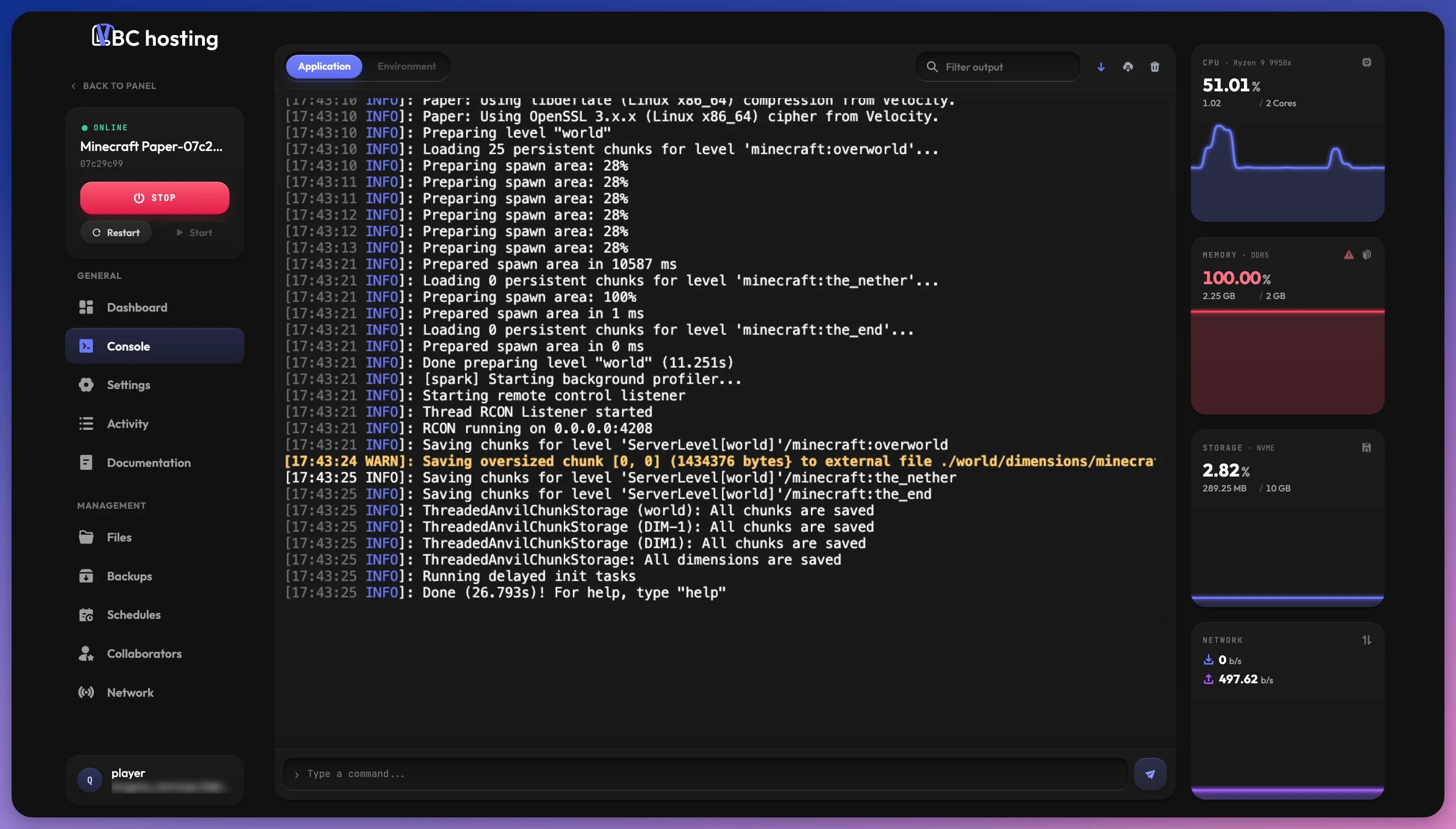
Once your application is running, you can monitor its resource usage and access the console to view activity and run commands.
When the server is stopped, the console shows The server is offline with a Start server button. Once it starts, the live output streams in and you can send commands.
Console Types
At the top of the console, the Application and Environment tabs switch between the two console modes. Depending on your application type, you may only have access to one of them.
Application Console
The application console displays your application's logs in real-time, including:
- Startup and shutdown messages
- Activity logs
- Error messages and warnings
- Command execution results
These logs come directly from the application itself, so they are usually in English and cannot be translated since it's third-party code.
Don't be intimidated by the console output. While it may look technical, think of it as a conversation between you and your application. The messages are generally written in plain, understandable phrases that tell you what the application is doing. This makes the console an invaluable tool for troubleshooting issues and monitoring your application's behavior.
For applications that support it, you can also send commands through the field at the bottom of the console. Commands are like orders you give to your application to perform specific actions. Use the up and down arrow keys to go back through the commands you sent before.
Most games require a slash (/) before commands in the in-game chat to distinguish them from regular messages. In the application console, every entry is already treated as a command, so no prefix is needed.
Environment Console
Some applications, such as websites, databases, bots, and other software, provide access to an Environment Console. This is an SSH-based terminal that gives you direct access to your application's Linux environment. The server must be running to use it.
In the environment console, you can use standard Linux commands such as:
ls,cd,pwdfor navigationnano,vimfor file editingcat,head,tailfor viewing files- Application-specific tools depending on your application type
This is useful for advanced configuration, debugging, or running maintenance tasks directly in your application's environment.
Disabled Console
Some applications do not support console commands. When console commands are disabled, the console will only display output without accepting input.
This happens when the application:
- Can only be controlled in-game or through its own interface
- Uses its own dedicated control panel
- Is managed through other tools like RCON, APIs, or external management interfaces
In these cases, refer to your application's specific documentation for how to manage and control it.
Console Controls
The bar above the output gives you these tools:
- Filter output: Shows matching lines highlighted and numbered. You can also press
Ctrl+F(Cmd+Fon Mac) in the console to jump to it. - Auto-scroll: Keeps the console on the latest lines. Scrolling up pauses it; turn it back on or click Latest to return to the bottom.
- Download log: Saves the console output as a
.logfile. This is useful when you need to share logs for troubleshooting or support. - Clear: Empties the console in your browser only. It doesn't affect the server or other people viewing the console.
Crash Diagnosis
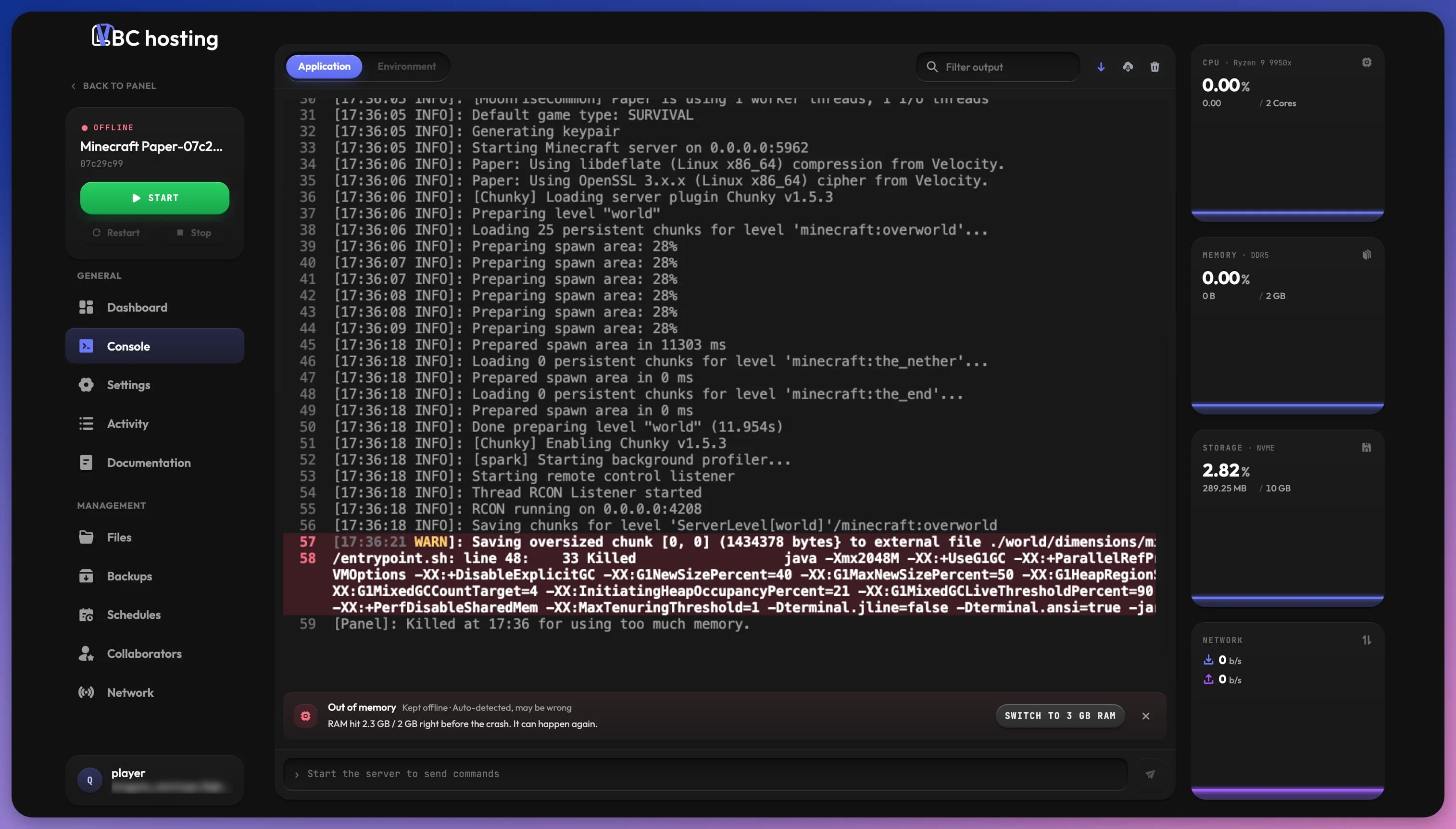
When the server crashes, a card appears at the bottom of the console. While the panel checks whether it is safe to restart, the server stays offline (this usually takes under a minute).
The panel then decides whether to restart the server:
- Restarted automatically: The crash can happen again, but a restart should work.
- Kept offline: A restart would fail the same way, so you need to fix the problem first.
- Crash loop: If the server crashes again within 10 minutes, it is not restarted.
An app that stops on its own on purpose (exit code 0) or asks for a restart (exit code 75) doesn't have to show up as a crash. See When the App Stops on Its Own.
With Smart features turned on, the card also shows the type of crash (for example Out of memory, CPU overloaded, Disk full, Port or network problem, Config error, Version mismatch or Missing file or dependency), the line that caused it, and suggested fixes as buttons, such as Check startup settings, Free up disk space, Repair the server, switching to a bigger plan or switching the app version.
The diagnosis is detected automatically and may be wrong. Check before acting on it.
Close the card to hide it. Crashes are also listed on the Activity page.
Resource Monitoring
Next to the console, cards display your application's resource usage:
- CPU: Processor consumption
- Memory: RAM usage
- Storage: Disk space utilization
- Network: Inbound and outbound traffic
A card turns red when usage reaches 80% of your plan's limit. If the bin takes up a lot of space, a bin tag appears on the Storage card. Click it to open the bin and empty it.
To learn more about what these resources mean and how they affect your application, see the Resources page.