
Backups
Learn how to create and manage incremental backups of your applications.
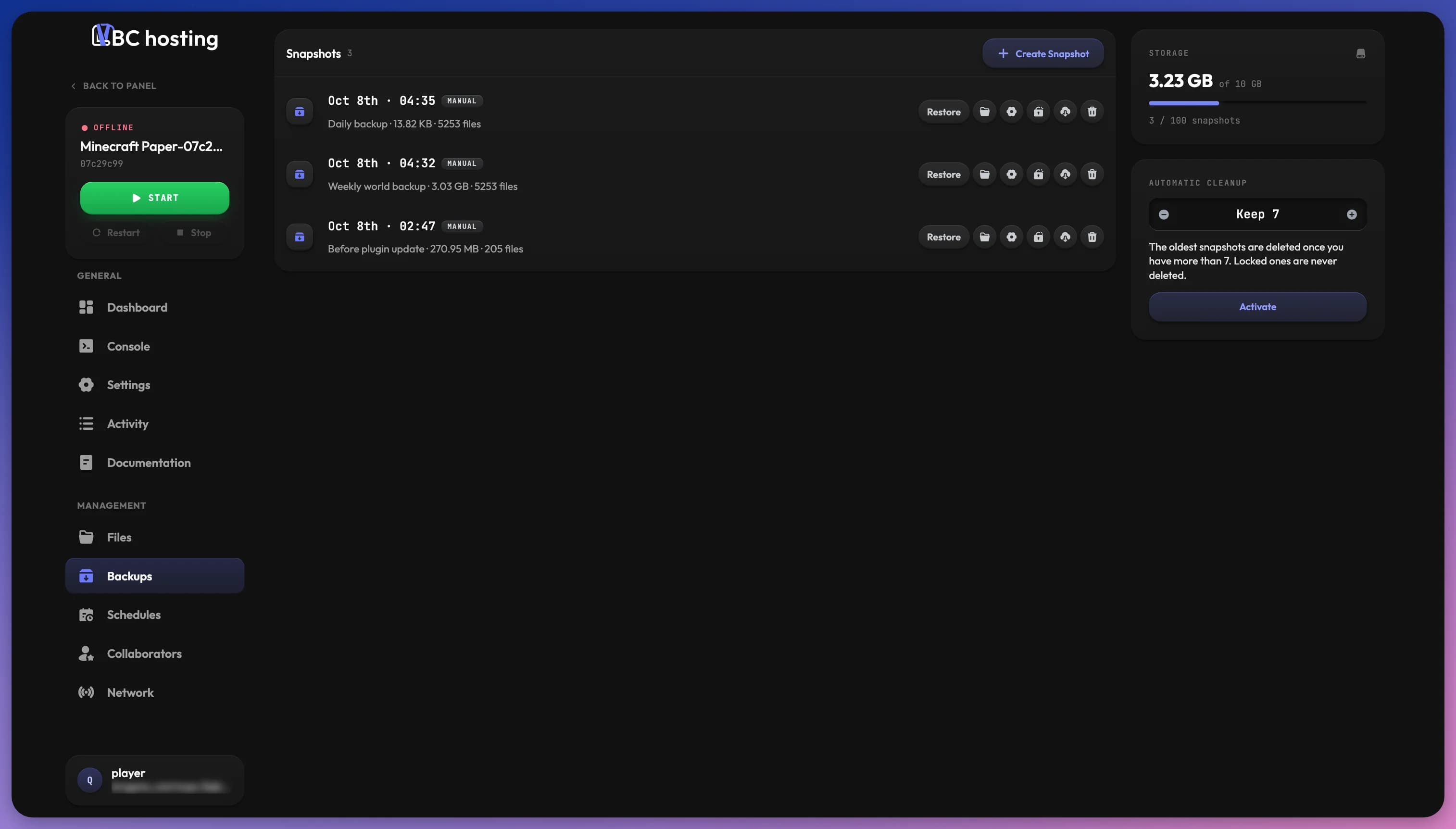
Backups allow you to save your application's files and restore them if something goes wrong. LBC uses an incremental backup system that saves storage space.
Only the server owner can manage backups. Collaborators cannot create or restore backups.
How Incremental Backups Work
Unlike traditional backups that copy all files every time, incremental backups only store the changes since the last backup. This means:
- Faster backups: Only new or modified files are saved
- Less storage used: Unchanged files are not duplicated
- More snapshots: You can keep more restore points without running out of space
Each backup creates a "snapshot", a complete picture of your files at that moment. Even though only changes are stored, you can restore any snapshot as if it were a full backup.
Storage and Limits
Backups are limited by storage space, not by the number of backups. The Storage card on the right of the backups page shows how much of your allocated backup storage is used (for example, 3.23 GB of 10 GB) and how many snapshots you have.
There is a hard limit of 100 snapshots to prevent abuse. This should be more than enough for most use cases when combined with a good retention policy.
Creating a Snapshot
Click the Create Snapshot button to create a new backup of your current files. The snapshot will capture the state of all your application files at that moment. You can add an optional Note to help you find it later, then click Take snapshot.
If your server is running, the dialog warns you that files being written may be saved incomplete. Stop the server first for a clean snapshot.
Snapshot Actions
The Snapshots list shows each snapshot with its date, note, size and number of files. Each snapshot has the following buttons:
- Restore: Restores the entire snapshot, replacing your current files with the backed up versions. Your server is stopped while the restore runs.
- Browse (folder icon): Opens a file manager popup where you can browse the snapshot's files, preview them, and download individual files or folders.
- Restore settings (gear icon): Restores your server's editable configuration variables from the snapshot without touching your files. See Restore Settings.
- Lock / Unlock: Protects the snapshot from deletion, including by the cleanup policy. You can add an optional reason when locking it.
- Download: Downloads the snapshot as an archive file.
- Delete: Permanently deletes the snapshot. Locked snapshots must be unlocked first.
Browsing Snapshots
The Browse feature opens a file manager interface for the selected snapshot. From here you can:
- Move through folders
- Preview files
- Download individual files or folders
- Restore specific files or folders without restoring the entire snapshot
This is useful when you only need to recover a specific configuration file or folder rather than rolling back everything.
Quick Restore
When you select Quick Restore on a file or folder (either from the browse view or from the file manager), you can see all available versions of that item across your snapshots.
Each version shows:
- When it was backed up
- File size
- Tags like Snapshot (the version in the selected snapshot) or Current (the version currently in use)
You can choose to:
- Restore to original location: Replaces the current file with the selected version
- Restore to custom path: Saves the restored file to a different location
Restore Settings
Every snapshot also captures your server's editable configuration variables (the settings you can change for your server). Restore settings lets you roll those variables back to the values saved in a snapshot, without restoring any files.
Choosing Restore settings on a snapshot shows you which variables would be restored. Values marked Invalid value, or Not in template when they are no longer part of your server's template, are not accepted and are skipped. They still appear in the list so you can review them.
Confirm with Restore settings to write the accepted values back into your server's configuration. This only updates your editable variables. It does not change your files or restart the server.
Backup Cleanup
Backups are cleaned up automatically based on a retention limit you control. In the Automatic cleanup card, use the - and + buttons to choose how many snapshots to keep (Keep 7 by default, between 1 and 100), then click Activate. Once you have more snapshots than this number, the oldest ones are deleted. After activation, changes to the number are saved automatically.
Locked snapshots are never deleted by the cleanup. Use locks to preserve important snapshots.
Activating the cleanup sets up a daily cleanup that runs automatically and appears as a system schedule on your Schedules page. You can also delete unlocked snapshots manually at any time.