
Basic
Changing, deleting, and creating files through a web-based file manager is easy! We'll show you how to do it, and much more.
Basic File Management
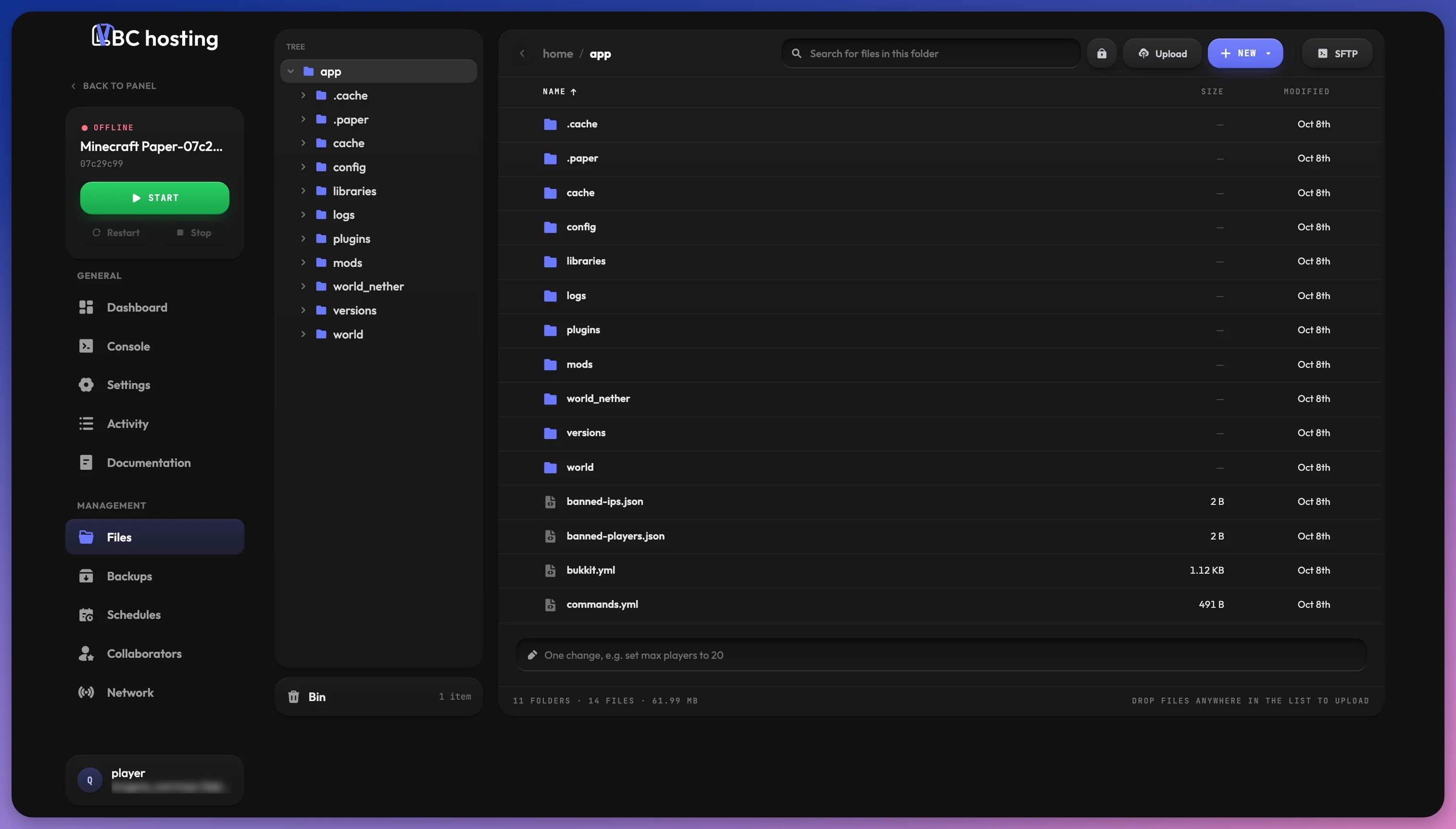
Need to upload worlds, plugins, or edit configuration files? Our web-based file manager makes it simple. This guide covers all essential file operations you can perform directly through your browser.
On the left, a Tree shows your server's folders so you can jump between them quickly. Under the tree, the Bin card shows how many items are in the bin.
The main card lists the files and folders of the current folder. At the top, you'll find:
- Search: filters the files in the current folder.
- Lock button: shows or hides system files. See Locked Files.
- Upload: uploads files from your computer.
- New: adds a New folder or New file. A row appears at the top of the list where you type the name, then click Create.
- SFTP: shows your SFTP Details (server address, port and username). See Advanced File Management.
Server is running
While your server is running, a warning appears at the top of the page: editing, moving or deleting files while it runs can corrupt data. Click Stop server in the warning to stop it first.
Web file editor
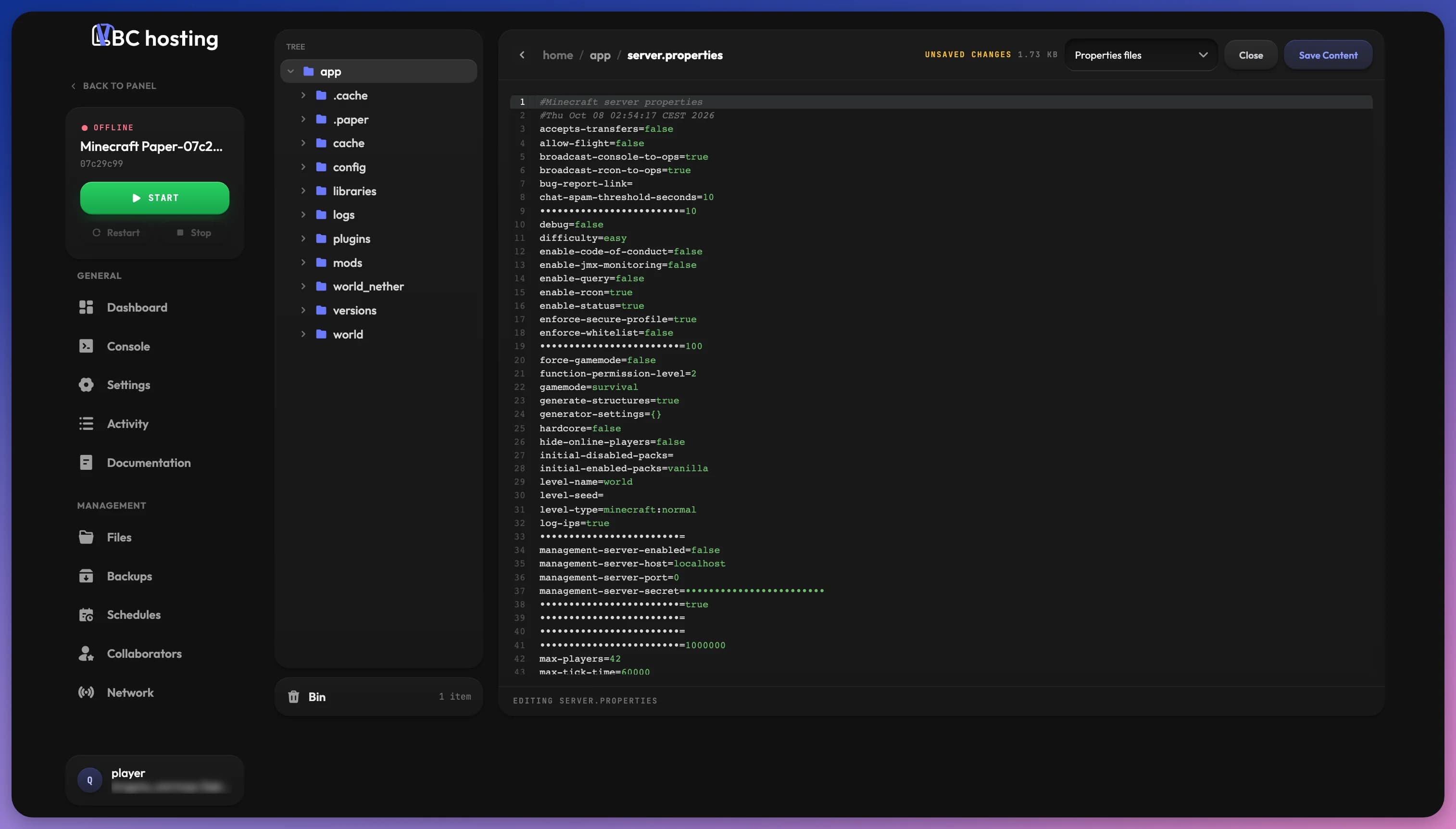
Click a file to open it in the editor inside the files card, with syntax highlighting. Unsaved changes appears at the top while you have changes that are not saved yet.
If the syntax highlighting does not work or displays incorrectly (this may happen if the file has a non-standard extension), you can force the format using the file type list next to the Close button.
Click Save Content to save the file, or Close to go back to the file list. If you leave with unsaved changes, the panel asks whether to save them first.
Uploading files
To upload a file, such as a plugin or a pre-saved world, click the Upload button and select the desired file from your computer in the file explorer that opens.
You can also drop files anywhere in the list to upload them.
The file uploads to your current folder. Files over the upload limit are refused, and the panel tells you the limit. Browsers can't upload folders here: zip the folder, upload it and extract it, or use SFTP. If you need to upload a larger file, use SFTP, we discussed how to use it here.
Context menu
Next to each file or folder, you'll find an additional context menu (three dots) with useful tools, such as:
- Rename: Allows you to change the name of a file or folder.
- Duplicate: Creates a copy of a file in the same folder.
- Download: Allows you to download the selected file to your computer.
- Quick Restore: Restores the file or folder from a backup. See Quick Restore.
- Delete: Deletes the selected file or folder. See Deleting files.
- Archive: Creates a
.tar.gzarchive from one or more selected files or folders in your current folder. - Unarchive: Extracts the archive into the current folder.
- Permissions: Opens a dialog where you set the permissions of a file or folder with Read, Write and Execute checkboxes for Owner, Group and Others, or by typing the mode (like
755). This may be necessary if a plugin or another executable cannot read or create the file or folder. Do not change it unless you know what you're doing.
To act on several items at once, tick their checkboxes. A bar appears at the top with Move, Archive and Delete. Move lets you pick the destination folder, then click Move here. You can also drag files onto a folder to move them.
Smart changes
With Smart features turned on, a bar at the bottom of the file list lets you describe one change in plain language, for example "set max players to 20". The panel shows a Review changes list with each change (and a line by line diff for edited files). Click Apply changes to apply them, or Cancel to drop them. For risky changes, the panel recommends taking a backup first. If the change needs a restart, repair or reinstall to take effect, the panel tells you once it is applied.
Deleting files
When you delete a file or folder, a dialog asks you to confirm:
- Move to bin: moves it to the bin, where it stays for 30 days.
- Delete forever: deletes it permanently. This cannot be undone.
If the bin is turned off, only Delete forever is offered.
Bin
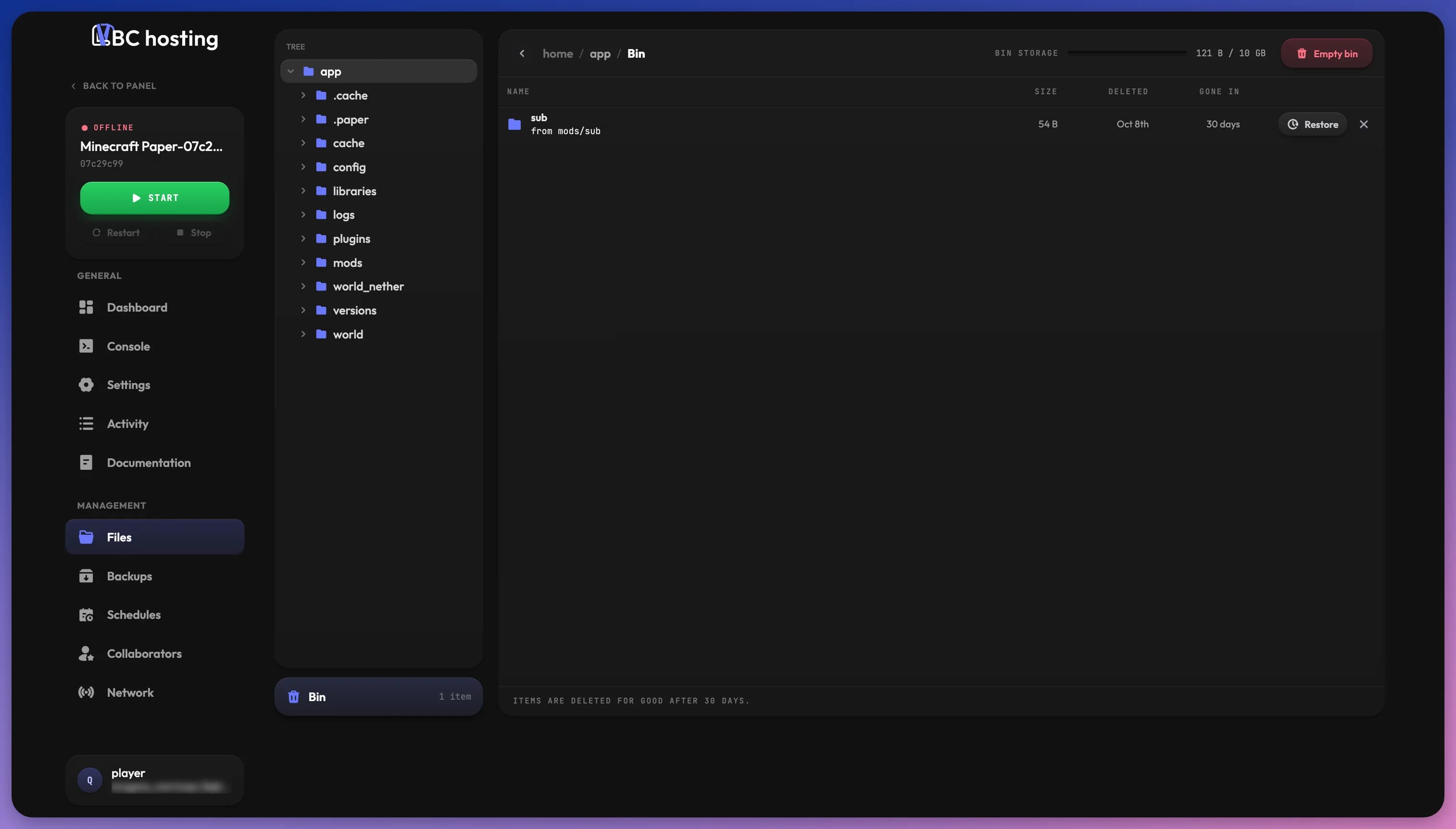
Click the Bin card under the tree to open the bin. It lists every deleted item with its original location, its Size, when it was Deleted, and how long until it is Gone in. Items are deleted for good after 30 days.
- Restore: puts the item back where it came from.
- Delete forever (the x button): deletes the item permanently.
- Empty bin: deletes everything in the bin. Click it a second time to confirm.
The Bin storage bar at the top shows how much space the bin uses. Items in the bin count toward your storage. When the bin takes up a lot of space, a Bin is taking up space warning appears on the files page with an Open bin button, so you can empty it and free space.
You can turn the bin off with the Bin option on the Settings page. Deleted files are then erased right away.
Quick Restore
Quick Restore lets you restore a file or folder to a previous version from your backups. Click the Quick Restore option on any file or folder to see all available versions across your snapshots. You can then choose which version to restore and whether to replace the current file or save it to a different location.
For more details on how versions and snapshots work, see the Backups documentation.
Locked Files
Some files in your application may be locked to prevent accidental modifications. There are two types of locks:
- Fully locked/restricted: These files cannot be accessed or modified through the web file manager. They are protected for security or system stability reasons.
- System files: These files are locked by default but can be unlocked. Click the lock button next to the search bar (Show system files) to unlock them. A banner reminds you that system files are unlocked and that changing them can break the server. Click the button again to lock them.
SFTP and other advanced file management methods have access to all files without restrictions, including locked files. Be careful when using these tools as you could accidentally modify or delete critical system files.